- Apr 18
How to post and resize photos on the courses
- Toby Haseler
Posting photos of your work is heavily encouraged as a vital part of all the courses. Here is a guide to how to do it.
When posting multiple photos, please try to post them all within the same comment to keep the comments/feedback section streamlined for everyone.
IF you are getting an 'error' stating your photo is too big follow the advice in this post: https://www.sketchloose.co.uk/blog/reducing-an-image-file-size-on-iphone-or-android
How to post
At the bottom of every lesson you will see a box with 'comment' written inside it. You need to scroll to the very bottom of the page to find it:
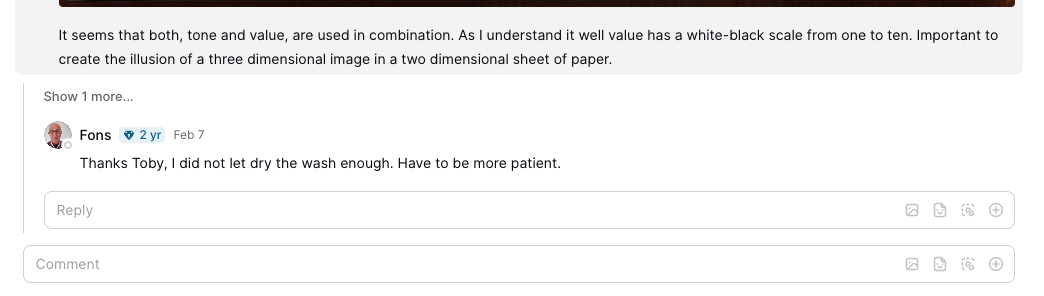
Notice there is also a reply box. Do not use this unless you specifically want to reply to (and send an email notification to) the person who has left the previous comment.
Inside the comment box you can type your question, feedback, or responses to the lesson.
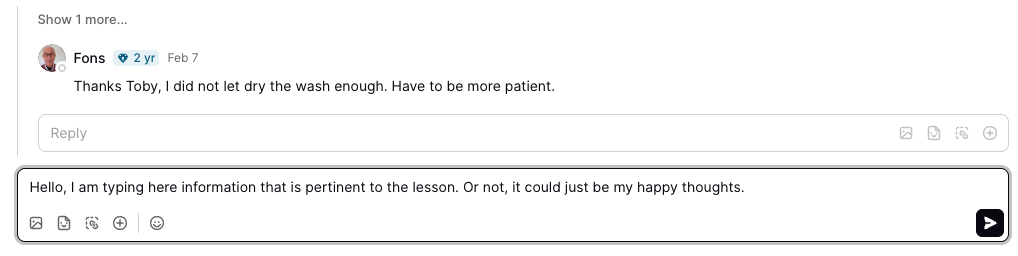
You can add your photo through one of three methods:
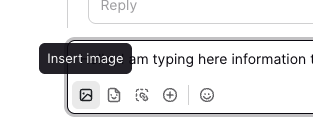
Option one: Click the insert image icon in the bottom left of the box (this may not appear on all devices)
Option two: Type a single forward slash in the box, this will bring up a menu as below where you can choose to upload a photo.
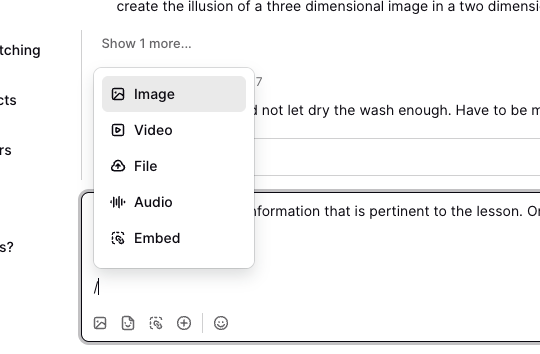
Option three: On a laptop/desktop you can simple drag and drop an image from your files into the box to upload it. Or use the copy + paste function of your device.
To post a further photo in the same box, just repeat these steps again
-
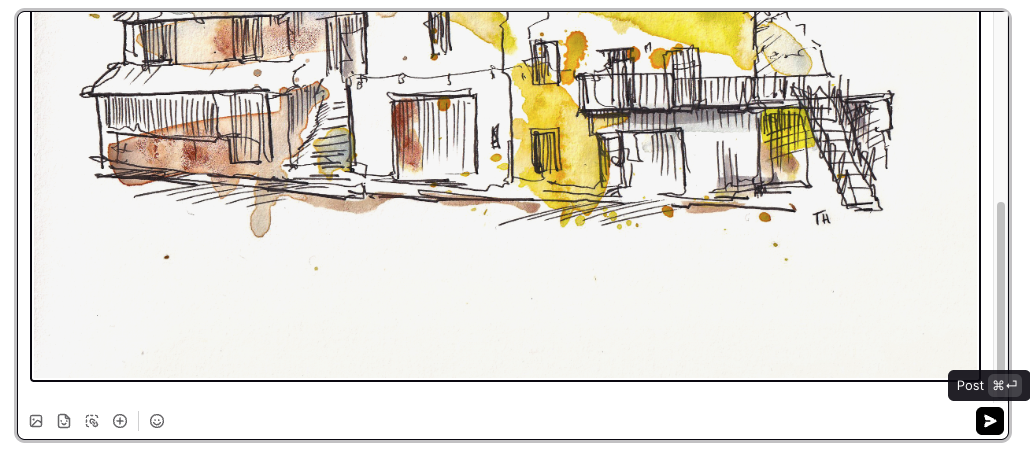
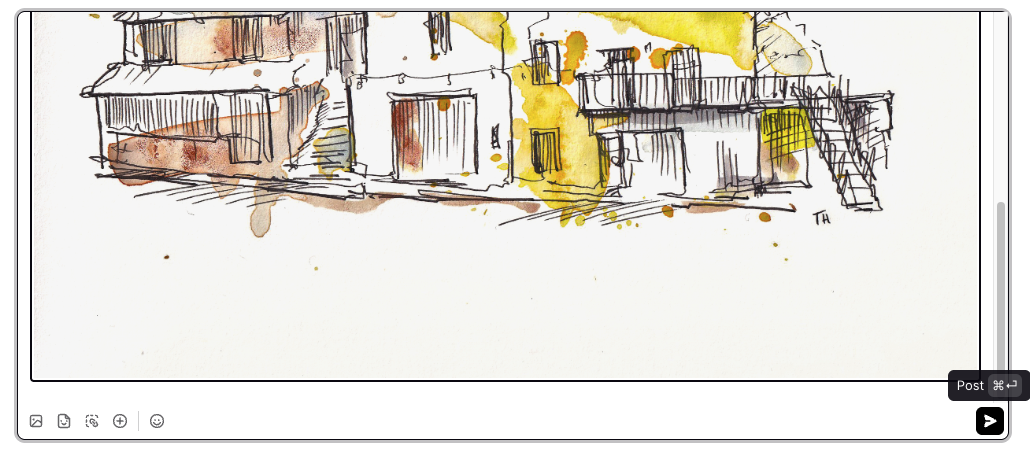
When you are finished, click the arrow in the bottom right corner:
How to resize your photos
When you have uploaded your photo, if you click on it (either with your finger on a phone, or your mouse on another device, you will get a simple menu:
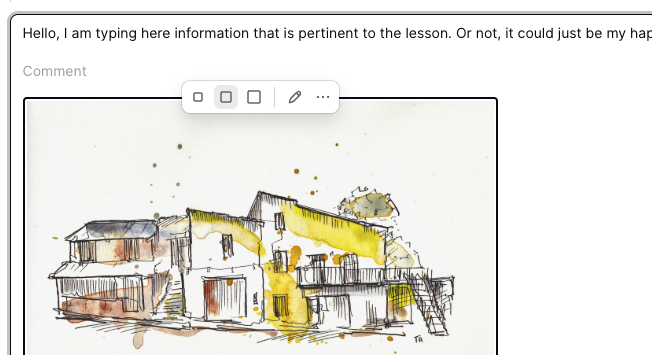
Notice the three squares above the image, that is your menu. In the screenshot above, the middle square is selected. That is the automated option.
Ideally, please when you upload change this and select the bigger square. I have done that below and notice how the image resizes. This makes feedback much easier.
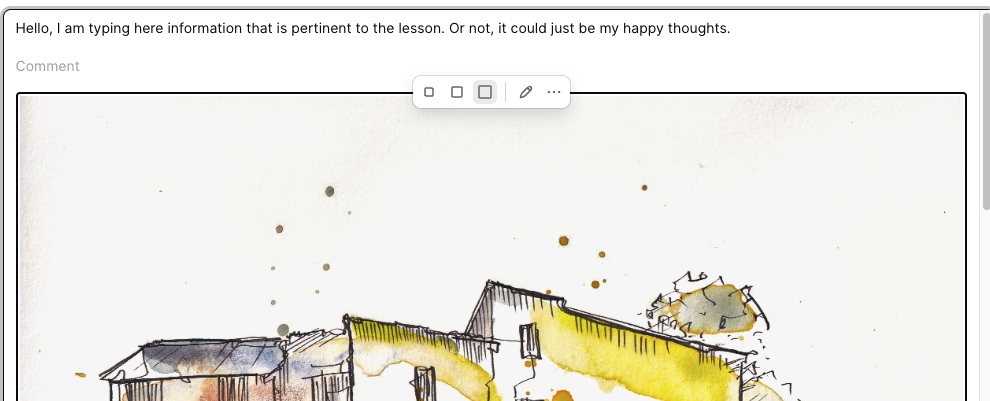
When you have finished click the arrow in the bottom right corner to post: