- Apr 18
Edit your notifications
- Toby Haseler
A recent update has changed the way people receive notifications, which can mean you are getting unwanted emails into your inbox.
Here is how to change that!
On a computer/desktop/laptop
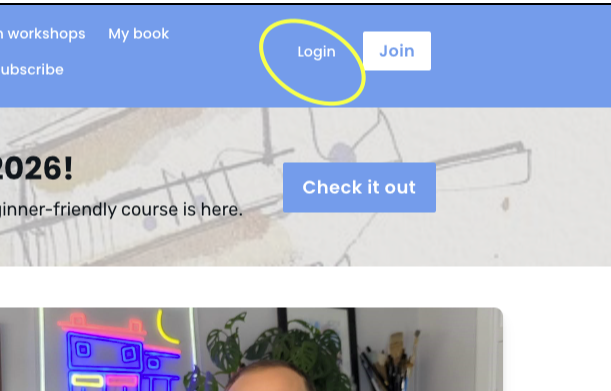
1 - Login by clicking 'login' in the top right corner of the website, or going to this link - https://www.sketchloose.co.uk/login
2 - You should now be on your 'dashboard', with a menu on the left hand side of the screen like the image below. If you aren't, then just go to this link - https://www.sketchloose.co.uk/p/home
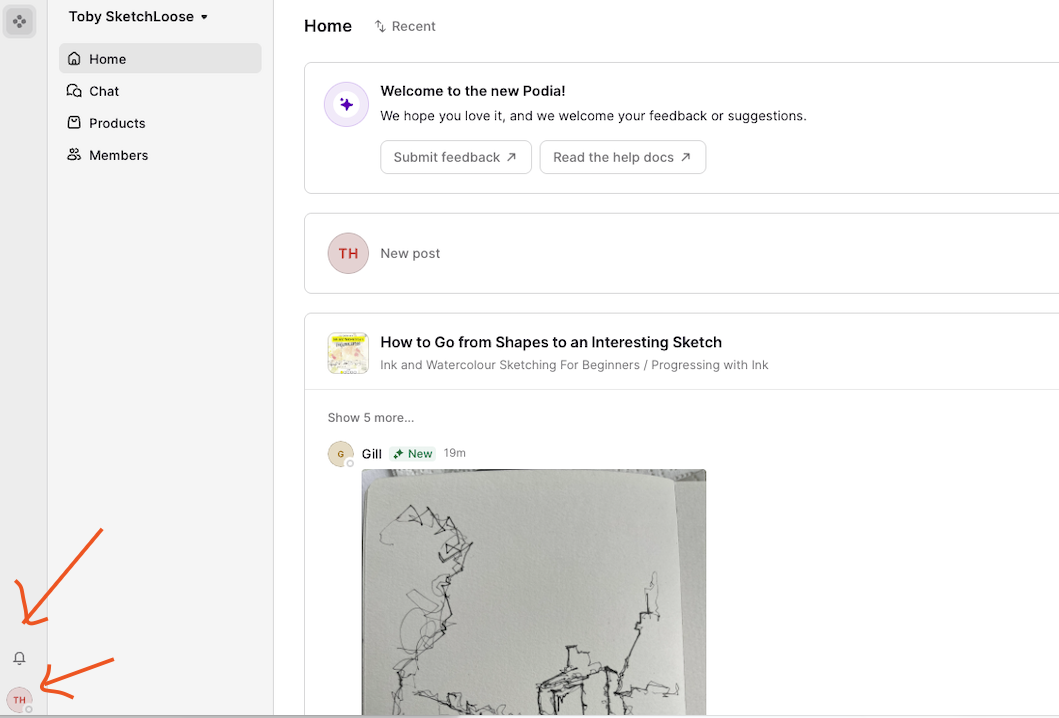
3 - In the bottom left corner you have two options, firstly you can click on the notification bell which will bring up the following menu:
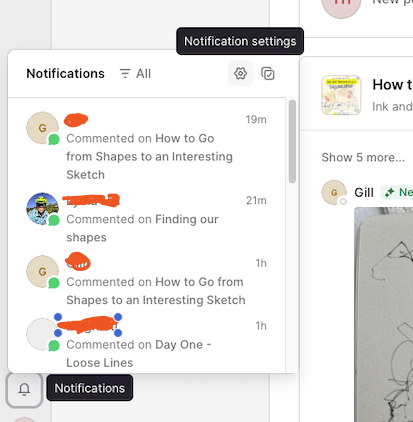
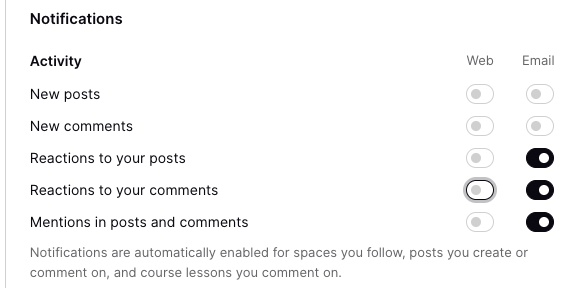
4 - From here you can click the cog (notification settings) which will take you to your account and notification settings. Keep reactions to your post, reactions to your comments and mentions in posts and comments switched on if you want to know when I have responded to your comment with feedback
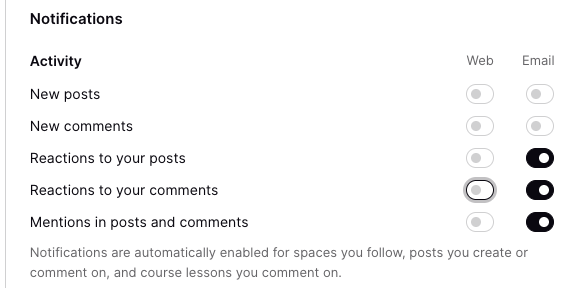
5 - Here, you can toggle off notifications you don't want to receive.
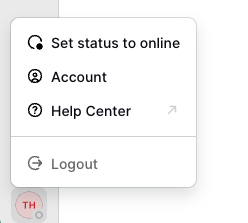
6 - Alternatively, in step 2 you could have clicked your initials. Which will take you to you the menu below, where you can click 'account'.
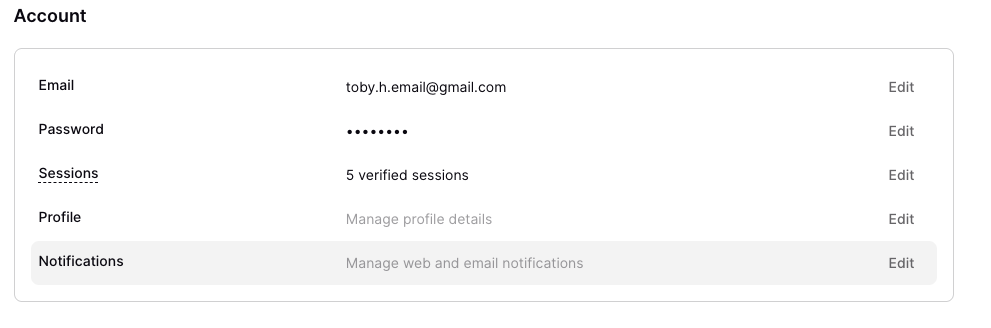
7 - You can then click 'notifications', in the menu that pops up to get the same options listed in step 4/5 above:
On a phone/tablet
1 - Firstly, login to the website, this is usually by clicking the drop down menu and selecting the log in option, or go to this link: https://www.sketchloose.co.uk/login
2 - From here, you should go to your dashboard, which will look like the below screenshot. At the top left of the screen you will have a little icon (next to the words 'Toby Sketch Loose'). Click on that. If you are not on your dashboard at this point, go to this link: https://www.sketchloose.co.uk/p/home
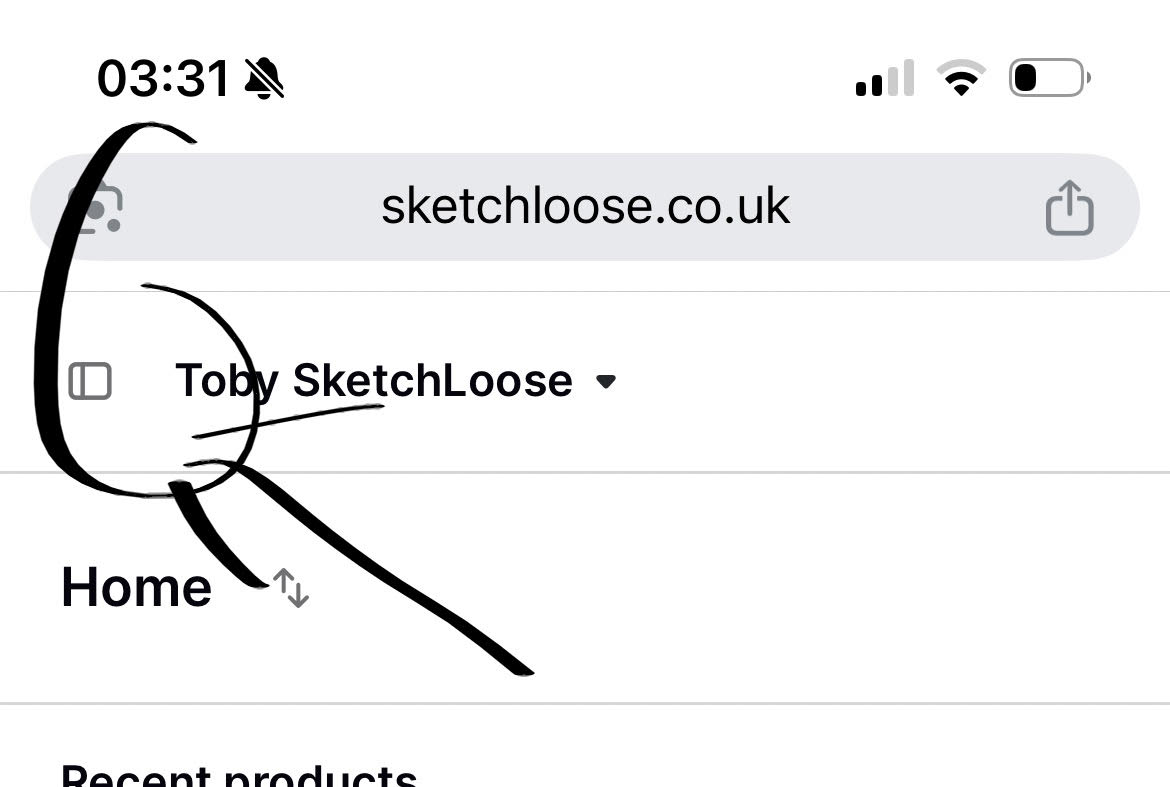
3 - This will bring up the same left sided menu as in the instructions above:
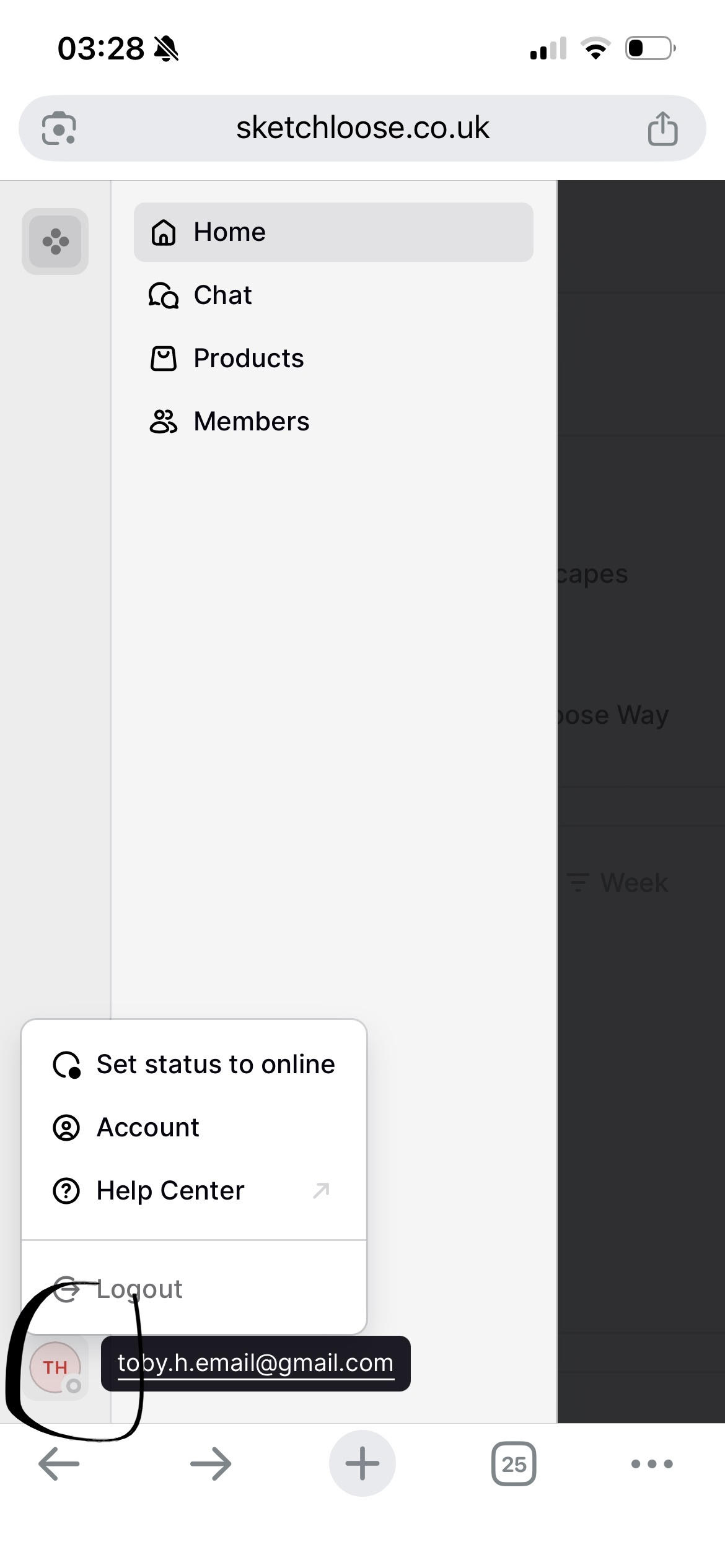
4 - From here please either click the notification bell, or your initials then account.
5 - This will take you to your account options:
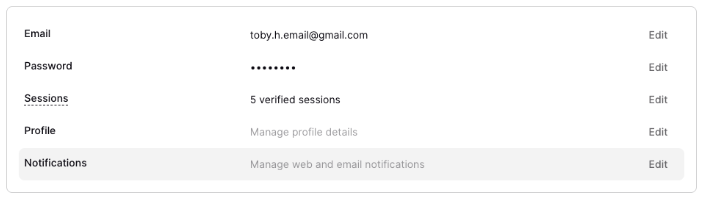
6 - From here, you can click notifications and toggle to options on and off to change what notifications you receive by email. Keep reactions to your post, reactions to your comments and mentions in posts and comments switched on if you want to know when I have responded to your comment with feedback